There’s no need to replace your computer frequently when simple maintenance can significantly extend its lifespan. By adopting regular care practices, you can optimize performance and protect your investment. This guide will provide you with crucial tips and strategies to ensure your computer runs smoothly for years to come. From software updates to hardware cleaning, these routine tasks are straightforward and effective in keeping your device in top shape.
Key Takeaways:
- Regularly clean hardware components and check for dust buildup to ensure optimal airflow and cooling.
- Schedule routine software updates and perform malware scans to keep your system secure and efficient.
- Monitor battery health and manage power settings to prolong battery life and overall system longevity.
Understanding the Importance of Routine Care
Regular maintenance significantly impacts the overall performance and lifespan of your computer. Just as you schedule routine check-ups for your health or your car, your computer also requires consistent care. Ignoring this necessity can lead to performance degradation, potential data loss, and ultimately, the need for costly repairs or replacements. Implementing regular updates, cleaning, and system checks keeps your computer running smoothly, ensuring you get the best return on your investment.
How Routine Care Affects Longevity
Routine care directly affects your computer’s longevity by preventing issues before they escalate. For instance, regularly cleaning dust from internal components reduces overheating risks, which can shorten the lifespan of critical parts. Performing software updates helps guard against security vulnerabilities and software inefficiencies, which also contribute to system stability over time. A well-maintained computer is less likely to suffer from unexpected breakdowns, extending its usable life significantly.
Factors Influencing Computer Lifespan
Several factors dictate a computer’s lifespan, including its hardware quality, usage patterns, and environmental conditions. High-quality components tend to last longer and withstand wear and tear better than cheaper alternatives. Regular use and the intensity of tasks performed can also accelerate hardware aging. Additionally, factors like temperature, humidity, and dust can negatively affect performance, making protective care vital. Keeping your workspace clean and utilizing cooling solutions can add years to your machine’s life.
- Hardware quality and durability
- Usage intensity and frequency
- Environmental factors like temperature and humidity
- Presence of dust and debris
- Regular software and hardware maintenance
- Power supply stability
- Any sudden changes in performance or capability
To better understand factors influencing longevity, you should consider how resource-intensive applications drain resources and lead to overheating. A gaming computer or one used for video editing will experience more wear than a machine used primarily for web browsing. Moreover, ensuring proper airflow around your workstation can prevent overheating, which is a common issue that directly reduces the lifespan of hardware components. Preventive approaches, such as using surge protectors, can also mitigate the risks of electrical surges that damage components over time.
- Software updates and system optimizations
- Regular cleaning and dust removal
- Use of heat management tools such as fans
- Monitoring system performance regularly
- Choosing components that match your usage needs
- Any neglect in these areas can lead to premature failure
Essential Maintenance Tips for Hardware
To ensure your computer’s longevity, focus on a few vital maintenance practices tailored for hardware. Regular diagnostics can help you identify potential problems early, while smart usage habits reduce wear and tear. Here are key tips to incorporate:
- Keep your workspace clean and dust-free.
- Utilize surge protectors to manage power fluctuations.
- Monitor temperatures and ensure proper ventilation.
- Check cables and connections regularly for signs of wear.
Thou shalt not underestimate the importance of these practices.
Regular Cleaning Practices
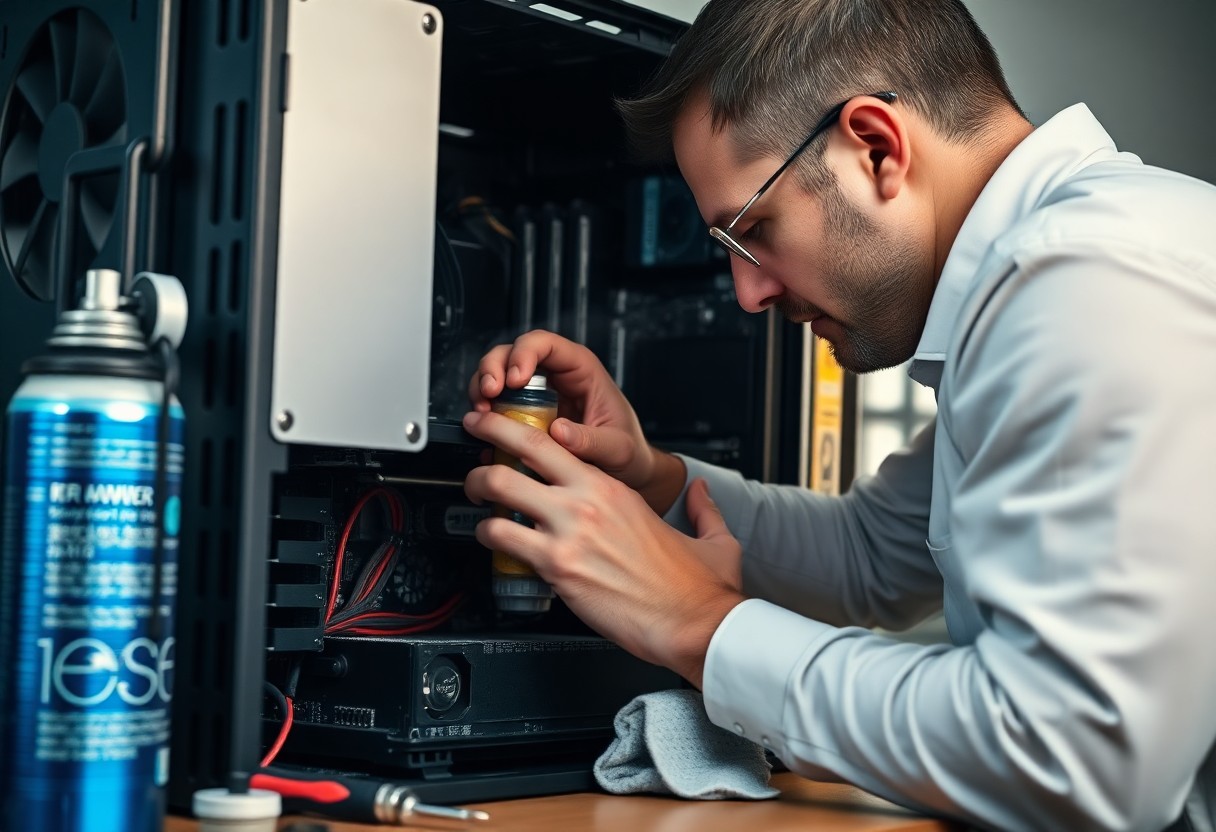
Routine cleaning is vital to prevent dust buildup that can lead to overheating. Use compressed air to blow out dust from vents and fans, and gently wipe down surfaces with microfiber cloths. Pay special attention to areas around ports and keyboard crevices, as these spots often trap debris.
Keeping Components Updated
Updating your components ensures your hardware performs at its best. Regularly check for manufacturer updates for drivers, BIOS, and firmware, which can enhance performance and fix bugs. Staying current with updates can also increase compatibility with new software and security protocols.
For example, using the latest graphics drivers can significantly boost gaming performance or rendering speeds. Additionally, some updates fix vulnerabilities that could expose your system to threats. You can schedule these updates to occur during off-hours to maintain productivity while keeping your system secure and efficient.
Software Maintenance for Optimal Performance
Keeping your software optimized is vital for maximizing your computer’s longevity and performance. A well-maintained software environment ensures that your system runs smoothly and efficiently, reducing the risk of crashes and slowdowns. Regular check-ins and clean-ups will help keep your applications and operating system running at their best, ultimately prolonging the life of your machine.
Managing Software Updates
Regularly managing software updates is vital for maintaining optimal performance. Enabling automatic updates ensures you receive the latest security patches and feature enhancements without hassle. However, periodically checking for manual updates is equally important, as it allows you to evaluate which updates are necessary for your usage and which may not be compatible with your system.
Removing Unnecessary Programs
Eliminating unnecessary programs from your computer can significantly enhance its performance and free up valuable system resources. By uninstalling applications that you no longer use, you not only create more space on your hard drive but also reduce the number of processes running in the background, which can slow down your system.
Consider the impact of unused programs on your system’s performance. Many computers come pre-installed with software that you may never use, often referred to as bloatware. These programs consume memory and processing power, leading to sluggish performance. Regularly evaluate the applications installed on your system, removing those that serve little to no purpose in your daily computing tasks, which can result in a noticeable boost in speed and efficiency.
Monitoring System Health
Regularly monitoring your system’s health can prevent issues before they escalate. By keeping a close eye on performance metrics, such as CPU usage, memory consumption, and temperature readings, you can ensure optimal functionality. Effective monitoring often requires a proactive approach, catching potential hardware failures or software bottlenecks early and addressing them promptly.
Utilizing Diagnostic Tools
Employing diagnostic tools is key to understanding your computer’s health. Applications like HWMonitor and CPU-Z provide real-time insights into hardware performance, while built-in operating system tools can track resource usage and identify problematic applications. These tools help you make informed decisions about system upgrades or necessary repairs.
Recognizing Warning Signs
Being attuned to warning signs can avert major issues down the line. If you notice slow boot times, unusual noises, or frequent crashes, these may signal underlying hardware or software problems. Additionally, increasingly slow performance during routine tasks often indicates that maintenance or upgrades may be necessary.
Being attentive to these warning signs is vital for sustaining your computer’s health. For instance, if your device takes longer to start up or applications freeze unexpectedly, it’s a red flag that something isn’t right. Unusual sounds, such as clicking or grinding from hard drives, can indicate hardware failure. Noticing a persistent increase in temperature might suggest inadequate cooling. Addressing these symptoms early can save you significant repair costs and extend the life of your device.
Power Management Techniques
Implementing power management techniques can significantly enhance your computer’s longevity and efficiency. By optimizing how your machine consumes power, you not only reduce energy expenses but also minimize wear on internal components. Adjusting settings and practicing good power cable management are fundamental steps in extending your computer’s life.
Settings for Energy Efficiency
Configuring your operating system’s power settings is vital for energy efficiency. Set your computer to enter sleep mode after a brief period of inactivity, and adjust the screen brightness to a lower level when possible. Utilizing features like “Power Saver” mode not only conserves energy but also helps prolong battery life for laptops.
Best Practices for Power Cables
Proper maintenance of power cables is vital for optimal performance and safety. Ensure cables are not damaged or frayed, as this can lead to electrical hazards. Use surge protectors to prevent power spikes, and manage cable tangles to promote better airflow, which can reduce overheating and maintain your computer’s performance.
Inspect power cables regularly for any signs of wear, as damaged cables can cause instability in power delivery, affecting performance and potentially damaging components. Position cables to avoid sharp edges and stress points that could wear them down faster. Utilizing cable ties can help organize and de-clutter, reducing the risk of accidental damage and ensuring proper airflow around your equipment. By investing time in managing your power cables, you can prevent many common electrical issues that might otherwise shorten the life of your computer.
Backup and Recovery Strategies
Importance of Regular Backups
Regular backups safeguard your data against accidental loss, hardware failure, or cyberattacks. By consistently updating your backup, you ensure that important files, photos, and documents remain secure and recoverable. Businesses, for instance, that implement weekly backups have reported a significant reduction in downtime and data recovery costs, highlighting the importance of a proactive approach to data management.
Choosing the Right Backup Solutions
Selecting an appropriate backup solution is crucial for effective data protection. Options range from cloud services like Google Drive and Dropbox to physical external hard drives. The choice depends on your storage needs, budget, and how often you update your files. While cloud services provide accessibility and lower upfront costs, external drives offer quick local access with one-time purchase fees, making both valid considerations.
Opt for a hybrid approach that combines cloud storage with physical backups for optimal security. This strategy not only ensures redundancy but also enhances your ability to recover data quickly in emergencies. For example, using a cloud service to store critical documents while keeping large files on an external hard drive creates a balanced, efficient solution. Evaluate features like encryption, ease of use, and storage limits to find the best fit for your needs, keeping in mind that an effective backup plan adapts as your requirements evolve.
Conclusion
With this in mind, consistently applying routine care to your computer can significantly extend its lifespan. Regular maintenance tasks such as keeping your software updated, cleaning hardware components, and managing storage can enhance performance and prevent costly repairs. By investing a little time in care, you can enjoy your device for years to come. For further insights, check out this guide on How to Make Your Old Computer Last.
FAQ
Q: What are the best practices for cleaning my computer?
A: Regularly clean your computer’s exterior using a microfiber cloth and mild cleaning solution. For the interior, dust the vents and components with compressed air, avoiding direct contact. Ensure the computer is powered off and unplugged before cleaning. Schedule this maintenance every few months to prevent dust buildup.
Q: How can I optimize my computer’s performance with routine care?
A: Optimize performance by updating your operating system and software regularly. Run disk cleanup tools to remove unnecessary files and defragment your hard drive if you use a traditional HDD. For additional speed, consider upgrading RAM or switching to a solid-state drive (SSD). Schedule performance checks every few months.
Q: What should I do to protect my computer from malware and viruses?
A: Install reliable antivirus software and enable automatic updates to maintain protection levels. Regularly run full system scans and avoid downloading attachments or clicking links from unknown sources. Educate yourself on safe browsing habits to minimize risks. Update your security software frequently for the best defense.